How to Compare Smartphones for Mobile App Security Testing
A mobile app can handle a permission correctly on one phone and leave users stuck on another. A photo upload might fail when someone shares only selected images, or a payment alert might reveal details on a locked screen. To catch those problems before release, use a smartphone buying guide to shortlist models that cover the OS versions your users actually run. Then compare how each device handles permission changes, sign-ins, and notifications using the same app build and test accounts.
Start With OS Versions Your Users Run
Use your app analytics to identify the most common iOS and Android versions, the oldest version you support, and any device families that account for a meaningful share of users. Include your oldest supported version and a newer version that users are adopting. If most Android users are on one version but a meaningful share uses an older one, include both versions in your test plan.
The model name is only part of the picture. An updated Pixel 8a may be running a much newer release than the Android 14 it launched with. Check the installed OS version and security patch level before assigning a test. If you need two OS versions at the same time, reserve separate devices or confirm the exact versions available
through a device testing service.
| Smartphone |
Where it fits in the test plan |
|
iPhone XR
|
Covers an iOS 18 test slot if your app still supports that version. |
|
iPhone 16
|
Covers a newer iOS release and lets you test Face ID. |
|
iPhone SE (3rd generation)
|
Adds Touch ID on a model that can also run iOS 27, so you can compare biometric flows on the same major release as the iPhone 16. |
|
Google Pixel 8a
|
Launched with Android 14. Use a unit on that version if Android 14 remains in your supported range. |
|
Google Pixel 9a
|
Launched with Android 15. Assign it to the version it actually runs, whether you need Android 15 coverage or a newer build. |
|
Samsung Galaxy A16 5G
|
Adds Samsung’s One UI to the mix. Check its installed Android and One UI versions before comparing prompts with a Pixel. |
Compare What Happens When Permissions Change
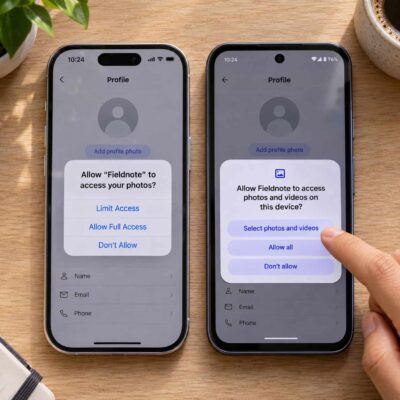
Start with a fresh install and open a feature that genuinely needs access, such as attaching a photo or finding a nearby store. Try granting permission, denying it, and revoking it later in system settings. Confirm that the app explains why it needs access and still lets the user continue wherever possible. A denied photo permission, for example, should let someone finish the parts of their profile that require no image.
Test limited access as a separate case. On iPhone and Android, check that a store finder handles approximate location if the user declines precise access. For photo uploads on Android 14 and later, test selected media access if your app requests library permissions. If it uses the system photo picker, verify that the user can finish the upload after selecting an individual image. Repeat the flow after changing access in settings.
On iPhone, grant limited Photos access if the app requests library access. Select one image, then change which images the app can see. Reopen the attachment screen and check that it reflects the new selection. On both platforms, a clear message should explain how to choose another image when access changes.
Test Sign-Ins and Biometric Fallbacks
Use the same test account on each platform and run the sign-in methods your app offers. On the iPhone 16, try Face ID. On the third-generation iPhone SE, try Touch ID. On the Pixel and Galaxy, test the biometric prompt and the fallback your app supports. Cancel the prompt, retry it, and check what happens when the phone has no enrolled biometric. The app should explain the next step without opening an account screen before authentication succeeds.
For apps that ask users to authenticate again before changing account details, run that flow separately. Cancel the prompt and confirm the change remains unsaved. Then complete the check and verify that the app returns to the intended screen.
If your app offers passkeys, test account creation and sign-in on both platforms. On Android 14 and later, users can choose another credential provider, so include a provider your audience uses if you support that flow. Finish by signing out, reopening the app, and confirming that account data stays behind the sign-in screen.
Check Sensitive Notifications With the Phone Locked
Send a test alert containing dummy payment details or a sample message. On iPhone, compare the lock screen with previews set to Always, When Unlocked, and Never. On Pixel and Galaxy, check the lock-screen options for hiding sensitive content. Also deny notification permission on a fresh Android install running Android 13 or later and verify that users can still find the information inside the app.
Check the wording with previews enabled, too. A generic alert such as “You have a new statement” can be useful without putting a balance or account number on the lock screen. Then tap the notification while signed out and confirm that opening the underlying content requires sign-in. Record the device, OS version, app build, and notification setting so the team can repeat the check after a fix. Before release, repeat any failed checks on the original device and one other model on that platform.